
You may have bought a new iPhone—but are you really using it to its full potential?
Most iPhone users only use basic features. In fact, 90–95% of users don’t know many powerful settings that can improve security, battery life, productivity, and overall experience.
In this guide, you’ll discover 15+ hidden iPhone settings and features that will make you say: “Wow, I didn’t know my iPhone could do this!â€
1. Turn On Stolen Device Protection 🔒
This adds an extra security layer to your iPhone. It prevents someone who has your passcode from making major changes to your account.
Note:Stolen Device Protection
Enable it: Go to Settings → Face ID & Passcode → Stolen Device Protection
2. Disable Control Center on Lock Screen
Thieves often immediately turn on Airplane Mode from the lock screen to prevent you from using "Find My".
Warning:Control Center Security
Fix: Go to Settings → Face ID & Passcode and turn OFF Control Center access under "Allow Access When Locked".
3. Enable Auto Erase After Wrong Passcode
If someone tries your passcode multiple times, your iPhone can automatically erase all data to protect your privacy.
Warning:Auto Erase Warning
Enable: Settings → Face ID & Passcode → Erase Data
4. Optimize Battery Charging 🔋
This helps increase the long-term health of your battery by reducing the time your iPhone spends fully charged.
Tip:Battery Longevity
Enable: Settings → Battery → Battery Health → Optimized Charging
5. Adjust Auto-Lock Timing
Many users keep their screen on too long (15–30 min), which drains battery and increases the risk of someone accessing your phone if left unattended.
Set it to: 30 sec or 1 min for the best balance of security and convenience.
Path: Settings → Display & Brightness → Auto-Lock
6. Customize Camera Control Button 📸
Newer iPhones (like iPhone 16 and 17) have a multi-function camera control button. You can customize what this button does to speed up your photography.
Path: Settings → Camera → Camera Control
7. Save Storage with High Efficiency Format
Photos and videos take up the most storage. Switching to HEIC/HEVC formats can save up to 50% space without losing quality.
Enable: Settings → Camera → Formats → High Efficiency
8. Enable Grid & Level for Perfect Photos
Avoid tilted or poorly framed photos by using the built-in composition tools.
Enable: Settings → Camera → Grid & Level
9. Customize Home Screen (iOS 18+) 🎨
iOS 18 brought Android-like customization to the iPhone. You can now place icons anywhere, resize widgets, and even change the tint of your icons.
How: Long press on the home screen → Customize
10. Use Focus Mode Smartly ðŸ§
Focus mode is more than just "Do Not Disturb". You can create custom screens and app layouts for different parts of your day.
- Work mode: Show only work-related apps and notifications.
- Personal mode: Hide work emails and Slack notifications.
Path: Settings → Focus
11. Create Keyboard Shortcuts ⌨ï¸
Save time on repetitive typing (like your address or email) by creating text replacements.
Example: Type “addr†→ Your full address appears automatically.
Enable: Settings → General → Keyboard → Text Replacement
12. Use Shortcuts App (Automation) âš¡
The Shortcuts App is the most powerful tool for automation on iPhone. You can set your phone to do things automatically based on time, location, or battery level.
Try this: Open Shortcuts app → Automation to create your first rule.
13. Customize Action Button
If you have an iPhone with an Action Button, don't leave it on Mute. You can set it to turn on the Flashlight, open the Camera, or even run a Specific Shortcut.
Path: Settings → Action Button
14. Set Emergency SOS & Medical ID 🚨
This could literally save your life. Ensure your Medical ID and emergency contacts are up to date.
Path: Settings → Emergency SOS
15. Use Visual Intelligence (AI Feature)
Part of Apple Intelligence, Visual Intelligence lets you take a photo of an object to find it online or get more information instantly.
Note:Visual Intelligence
16. Customize Control Center
You can now fully resize and reorganize your Control Center icons. Add tools you actually use, like Shazam (Music Recognition) or Screen Recording.
How: Swipe down from top right → Long press any empty space → Add a Control.
17. Customize Lock Screen Shortcuts
You are no longer stuck with Flashlight and Camera on your lock screen. You can swap them for any app or shortcut you want.
How: Long press Lock Screen → Customize → Lock Screen.
18. Use Built-in Call Recording 📞
New in recent iOS versions, you can now record and transcribe phone calls directly without third-party apps.
How: Tap the waveform icon in the top-left corner during a call. Both parties will be notified that the call is being recorded.
Conclusion
Your iPhone is much more powerful than you think. By enabling these settings, you can improve your security, save battery life, and boost your daily productivity.
Don’t just use your iPhone—master it.
Spread the Knowledge
If you found this guide helpful, share it with your network!
You Might Also Like
Handpicked guides and fixes related to what you just read.
Stop Phone Battery 🪫 Drain: 5 Easy Tricks That Actually Work
Is your smartphone battery dying too fast? Discover 5 simple, effective hacks to stop background drain and extend your phone's daily battery life.
Read more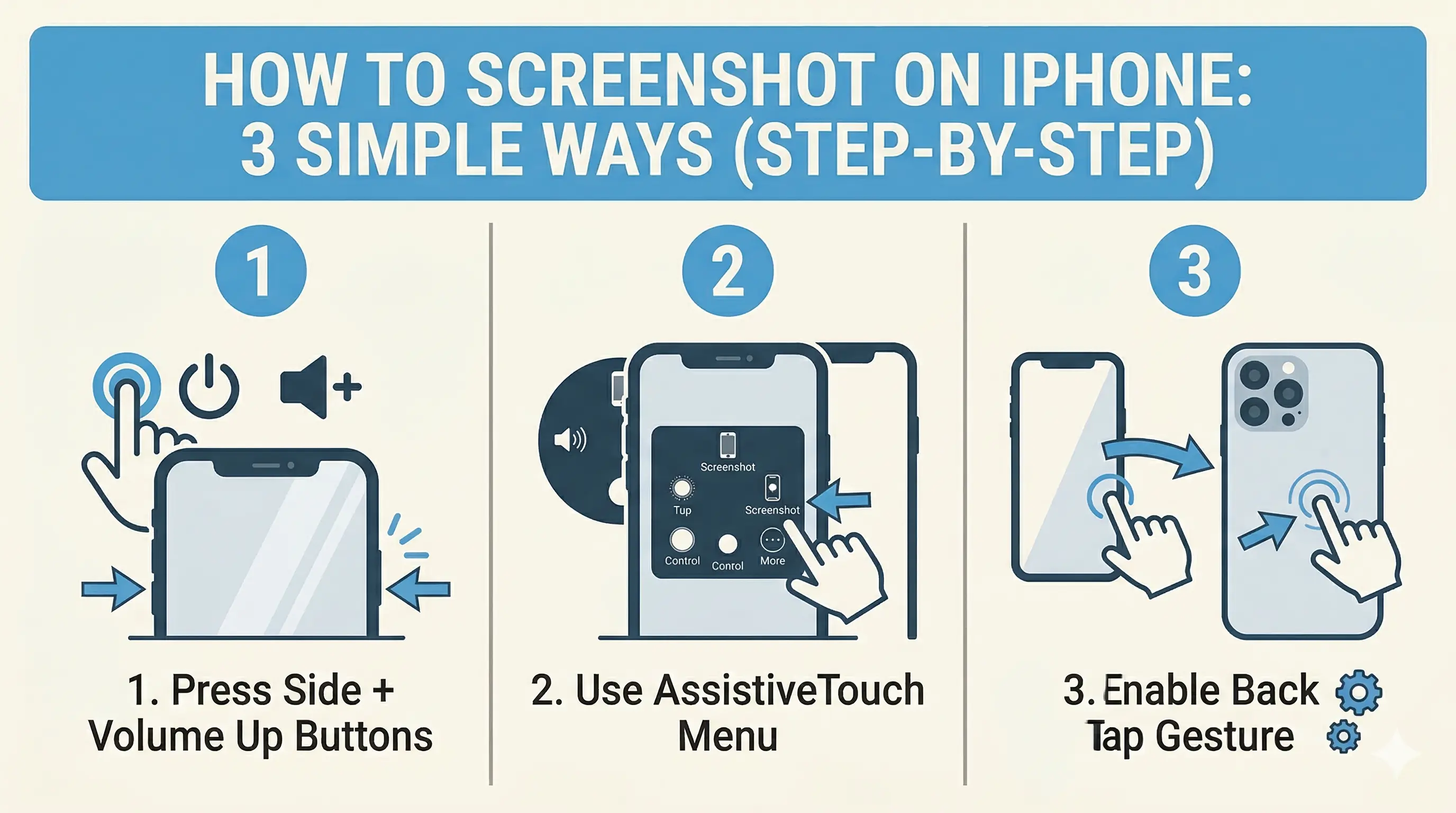
How to Screenshot on iPhone: 3 Simple Ways (Step-by-Step)
Capture your iPhone screen like a pro! Discover the hidden Back Tap feature, AssistiveTouch shortcuts, and the classic button method for seamless screenshots.
Read more
No Wi-Fi? How to Use Your iPhone as a High-Speed Hotspot
Learn how to turn your iPhone into a powerful Wi-Fi router. Share your mobile data with laptops, tablets, and other devices in just a few simple steps.
Read more
How to Lock WhatsApp Chat in iPhone (Easy Guide)
Learn how to easily lock your WhatsApp chats on your iPhone using Face ID, Touch ID, or a secret code for extra privacy and security.
Read more