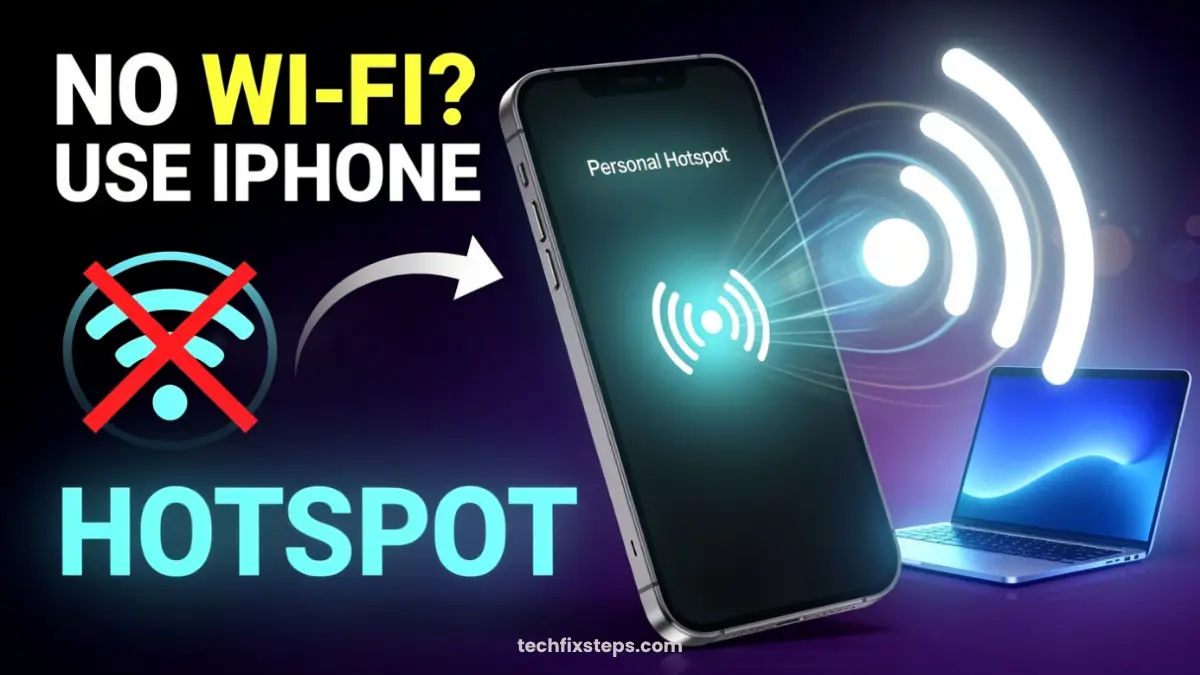

Sharing your internet from your iPhone is very easy using the Personal Hotspot feature. It allows you to connect other devices like laptops, tablets, or other phones to your iPhone’s internet.
In this guide, you will learn how to set up and use Personal Hotspot on your iPhone in a few simple steps.
What Is Personal Hotspot?
Personal Hotspot is a feature that turns your iPhone into a Wi-Fi router.
It lets you:
- Share mobile data with other devices
- Connect multiple devices at once
- Use internet anywhere you have a cellular signal
Step-by-Step Guide to Enable Personal Hotspot
Follow these easy steps to get started:
Step 1: Open Settings
- Unlock your iPhone
- Go to the Settings app
Step 2: Go to Cellular
- Tap on Cellular
- Make sure Cellular Data is turned ON
Note:
Step 3: Open Personal Hotspot
- Go back or scroll down in Settings
- Tap on Personal Hotspot
Step 4: Turn On Personal Hotspot
- Enable Allow Others to Join
Note:
Step 5: Set or Change Password
- Tap on Wi-Fi Password
- Enter a strong, secure password
Tip:
How to Connect Other Devices
On the device you want to connect (laptop, tablet, or another phone):
- Turn on Wi-Fi
- Select your iPhone name from the list of networks
- Enter the password you set in Step 5
You are now connected to the internet!
Important Tips
- Keep your password strong: Prevent unauthorized access.
- Turn off hotspot when not in use: Saves battery and mobile data.
- Monitor your data usage: Hotspot can consume data quickly depending on connected devices.
- Keep your phone charged: Using a personal hotspot drains the battery faster than normal usage.
Common Issues & Fixes
Hotspot not showing?
Make sure Cellular Data is ON and that your carrier plan supports hotspots.
Devices not connecting?
Try restarting Wi-Fi on both devices or toggle Airplane Mode on your iPhone.
Slow internet?
Check your network signal strength. Hotspot speed depends on your cellular reception.
Conclusion
Setting up a Personal Hotspot on an iPhone is quick and simple. Just turn on cellular data, enable the hotspot, and connect your devices.
Tip:Pro Tip
Spread the Knowledge
If you found this guide helpful, share it with your network!
You Might Also Like
Handpicked guides and fixes related to what you just read.
A Complete Guide to Backing Up WhatsApp Chats on Your iPhone
Don't lose your precious memories! Learn how to securely back up your WhatsApp chats, photos, and videos to iCloud on your iPhone with our simple step-by-step guide.
Read more
Fix iPhone Hanging & Slow Network with a Force Restart
Is your iPhone freezing or stuck? Learn the official and safe method to force restart any iPhone model to fix hanging, network glitches, and performance issues instantly.
Read more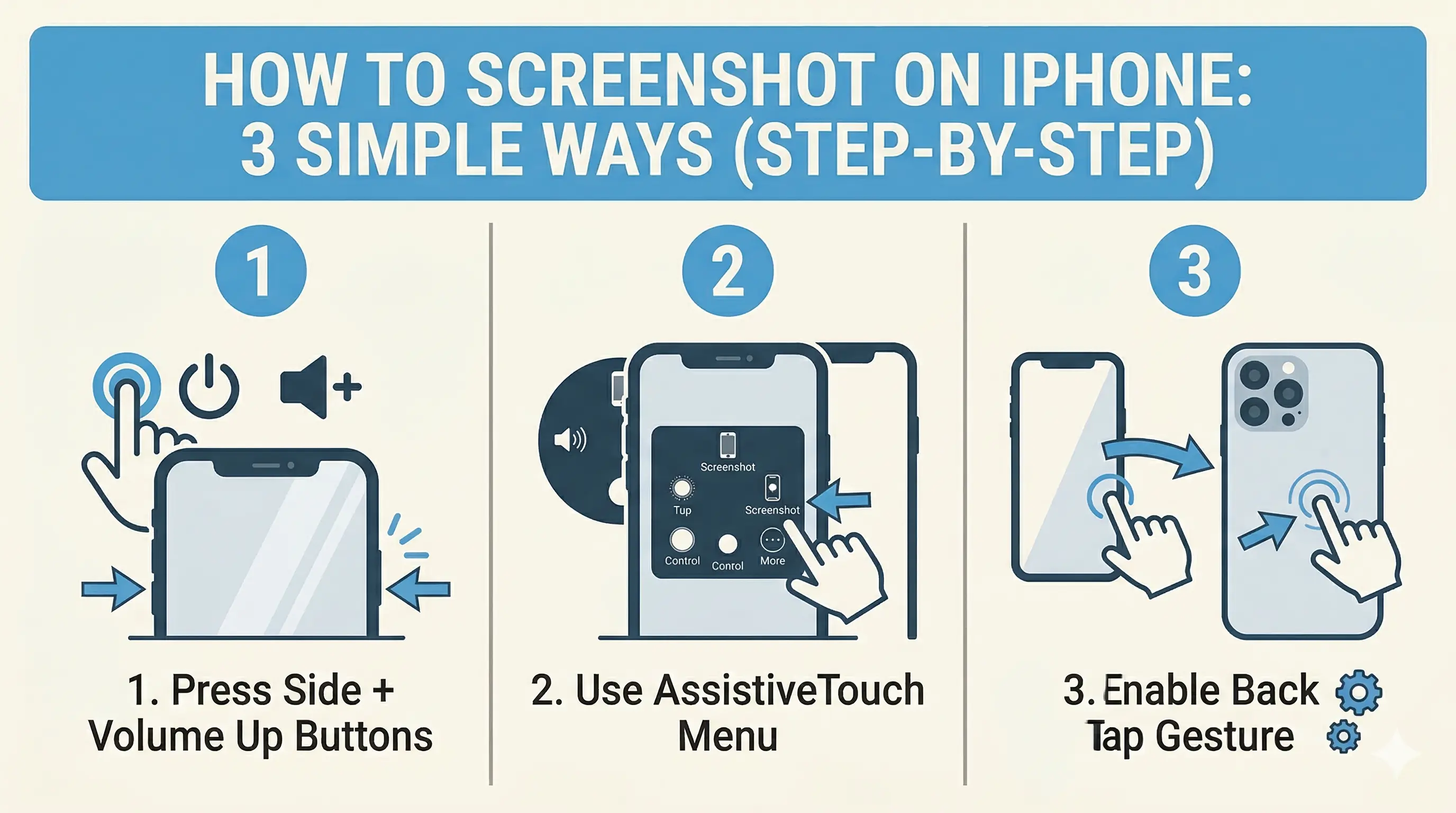
How to Screenshot on iPhone: 3 Simple Ways (Step-by-Step)
Capture your iPhone screen like a pro! Discover the hidden Back Tap feature, AssistiveTouch shortcuts, and the classic button method for seamless screenshots.
Read more
How to Purchase an App on Apple Devices (iPhone, iPad, Mac in 2026)
A clear, step-by-step guide for beginners on how to buy apps from the official App Store on iPhone, iPad, and Mac, including payment setup and troubleshooting.
Read more