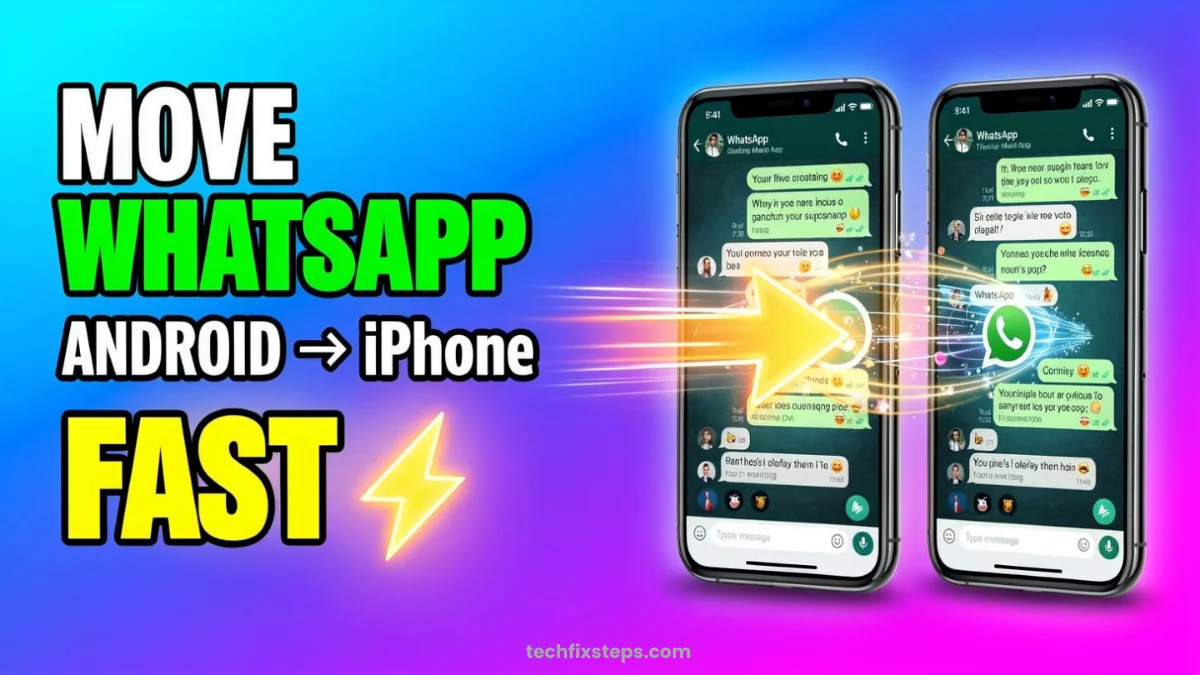

Switching from Android to iPhone but worried about losing your WhatsApp chats, photos, and videos? Don’t worry—you can safely transfer your WhatsApp data using a few proven methods.
In this guide, you’ll learn 3 working methods to transfer WhatsApp data from Android to iPhone—step by step.
1. Things to Know Before You Start
Before initiating any transfer, ensure the following requirements are met to avoid errors:
- Use the same phone number on both devices.
- Keep both devices charged (at least 70% recommended).
- Use a stable Wi-Fi network (ideally the same one for both).
- Update WhatsApp to the latest version on both phones.
Method 1: Use Companion Device (Fastest Way)
This method allows you to use your WhatsApp on your iPhone while keeping your Android as the primary device for a while. It's the fastest way to see your chats on a new phone.
Steps for iPhone:
- Install WhatsApp on your new iPhone.
- Open it and tap Agree & Continue.
- Instead of entering your phone number, tap the three dots (top right icon).
- Select Link as Companion Device.
- A QR code will appear on your iPhone screen.
On your Android:
- Open WhatsApp on your Android phone.
- Tap the three dots → Linked Devices.
- Tap Link a Device.
- Scan the QR code shown on your iPhone.
👉 Result: Your chats will sync instantly to the iPhone.
Warning:Essential Requirement
Method 2: Use Move to iOS (Official Method)
This is the official way provided by Apple and WhatsApp to move your entire history including media.
Note:Note on Third-Party Apps
Step 1: Reset iPhone
Go to Settings → General → Transfer or Reset iPhone. Tap Erase All Content and Settings. (Skip this if your iPhone is already brand new and not yet set up).
Step 2: Start Setup
Start the iPhone setup process. When you reach the "Apps & Data" screen, choose the Move Data from Android option.
Step 3: On Android Device
- Install the Move to iOS app from the Play Store.
- Open it and tap Continue.
- Enter the 6-digit or 10-digit code shown on your iPhone.
Step 4: Transfer WhatsApp
- Select WhatsApp from the transfer list.
- Tap Start Transfer. WhatsApp will prepare the data for export.
Step 5: Complete Setup
- Finish the remaining iPhone setup steps.
- Install WhatsApp from the App Store.
- Verify your same phone number.
- Tap Import Chats when prompted.
👉 Result: All your chats and media will be moved permanently to the iPhone.
Method 3: Use Third-Party Apps
Apps like Copy My Data can help if you don't want to reset your iPhone, but they have major limitations.
Steps:
- Install the app on both devices.
- Connect both to the same Wi-Fi.
- Open the app on both and follow the on-screen prompts.
- Enter the pairing code.
- Select the data categories (Photos, Videos, Contacts).
Tip:Pro Tip
Comparison of Methods
Choose the method that best fits your situation using the table below.
| Method | Chats | Media | Reset Required | Difficulty |
|---|---|---|---|---|
| Companion Mode | ✅ | Partial | ⌠| Easy |
| Move to iOS | ✅ | ✅ | ✅ | Medium |
| Third-party Apps | ⌠| ✅ | ⌠| Easy |
Common Problems & Fixes
1. QR Code Not Scanning
- Clean your camera lens.
- Increase the screen brightness on your iPhone.
2. Transfer Stuck
- Ensure you have a very strong Wi-Fi signal.
- Restart both devices and try again.
3. Chats Not Showing
- Verify you used the exact same phone number.
- Ensure both apps are on the latest version.
Final Conclusion
Depending on your needs, choose one of these three paths:
- If you want the best result: Use the Move to iOS (official method).
- If you want a quick setup without reset: Use the Companion Device feature.
- If you only need your media files: Use third-party apps.
By following these steps, you can move to your new iPhone without leaving your important WhatsApp memories behind!
Spread the Knowledge
If you found this guide helpful, share it with your network!
You Might Also Like
Handpicked guides and fixes related to what you just read.
A Complete Guide to Backing Up WhatsApp Chats on Your iPhone
Don't lose your precious memories! Learn how to securely back up your WhatsApp chats, photos, and videos to iCloud on your iPhone with our simple step-by-step guide.
Read more
A Complete Guide to Backing Up WhatsApp Chats on Your Android Phone
Don't lose your precious memories! Learn how to securely back up your WhatsApp chats, photos, and videos to Google Drive on your Android phone with our simple step-by-step guide.
Read more
How to Lock WhatsApp Chat in iPhone (Easy Guide)
Learn how to easily lock your WhatsApp chats on your iPhone using Face ID, Touch ID, or a secret code for extra privacy and security.
Read more
No Wi-Fi? How to Use Your iPhone as a High-Speed Hotspot
Learn how to turn your iPhone into a powerful Wi-Fi router. Share your mobile data with laptops, tablets, and other devices in just a few simple steps.
Read more