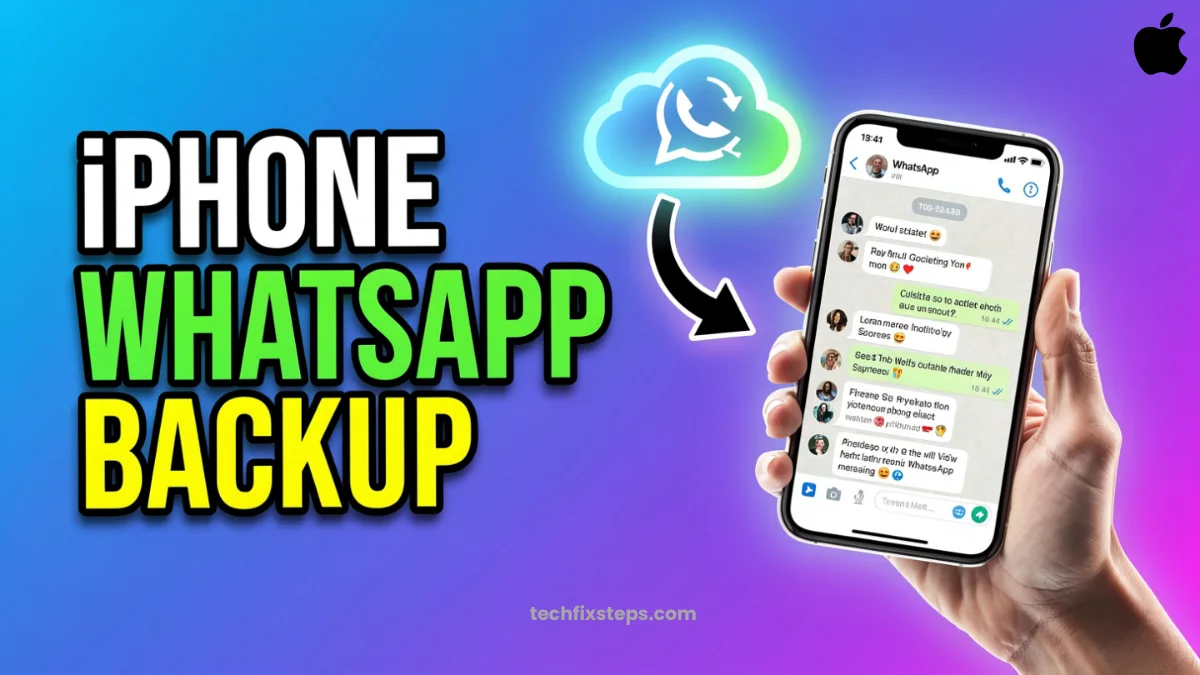

Your WhatsApp chats hold important conversations, cherished photos, and vital information. Losing access to them can be devastating. Fortunately, backing up your WhatsApp data on an iPhone is incredibly straightforward, utilizing Apple's iCloud service.
In this comprehensive guide, we'll walk you through exactly how to secure your chat history, both manually and automatically.
Why Back Up Your Chats?
Think of your WhatsApp backup as an insurance policy for your digital life. You need a backup if you plan to:
- Upgrade your phone: Seamlessly transfer your chats to a new iPhone.
- Protect against loss: Recover your messages if your iPhone is lost, stolen, or damaged.
- Reinstall WhatsApp: Restore your history if you need to delete and reinstall the app.
Interactive iOS Guide
Try our interactive mockup below to see exactly how the backup process looks on an iPhone. Click through the steps to simulate a backup!
iPhone Guide
WhatsApp Backup (iOS)
Follow the blue indicators on the iPhone mockup.
Chats
Last message sent here...
Last message sent here...
Last message sent here...
Last message sent here...
* Interactive demonstration for illustration purposes.
Step-by-Step Instructions
If you prefer reading through the steps while following along on your device, here is the detailed breakdown:
Note:
1. Open WhatsApp Settings
- Launch WhatsApp on your iPhone.
- Tap the Settings gear icon located in the bottom right corner of the screen.
2. Navigate to Chats
- In the Settings menu, locate and tap on the Chats option.
3. Access Chat Backup
- Tap on Chat Backup. This screen displays information about your last backup and total backup size.
4. Initiate the Backup
- Tap the blue Back Up Now button.
- Wait for the process to complete. You'll see a progress bar indicating the upload to iCloud.
Warning:
Setting Up Auto Backup
To ensure you never forget to back up your chats, setting up an automatic schedule is the best approach.
- On the Chat Backup screen, tap on Auto Backup.
- Choose your preferred frequency:
- Daily (Recommended for active users)
- Weekly
- Monthly
- (Optional) Toggle on Include Videos if you want to save video messages. Note that this will significantly increase the backup size and take longer to complete.
Troubleshooting Common Backup Issues
Having trouble getting the backup to finish? Here are a few things to check:
- iCloud Storage Full: You need at least 2.05 times the space available in your iCloud account and on your phone than the actual size of your backup. Go to iPhone Settings > [Your Name] > iCloud to check your storage.
- iCloud Drive is Off: Ensure iCloud Drive is enabled. Go to iPhone Settings > [Your Name] > iCloud and verify iCloud Drive is switched on.
- Network Connection: Backups require a stable internet connection. Try switching to a different Wi-Fi network.
By following these steps, you can rest assured that your important WhatsApp conversations are safely stored in the cloud, ready to be restored whenever you need them.
Spread the Knowledge
If you found this guide helpful, share it with your network!
You Might Also Like
Handpicked guides and fixes related to what you just read.

A Complete Guide to Backing Up WhatsApp Chats on Your Android Phone
Don't lose your precious memories! Learn how to securely back up your WhatsApp chats, photos, and videos to Google Drive on your Android phone with our simple step-by-step guide.
Read more
How to Transfer WhatsApp Data from Android to iPhone (3 Easy Methods)
Switching to iPhone? Learn 3 simple ways to transfer your WhatsApp chats, photos, and videos from Android to iOS safely without losing your memories.
Read more
No Wi-Fi? How to Use Your iPhone as a High-Speed Hotspot
Learn how to turn your iPhone into a powerful Wi-Fi router. Share your mobile data with laptops, tablets, and other devices in just a few simple steps.
Read more
How to Lock WhatsApp Chat in iPhone (Easy Guide)
Learn how to easily lock your WhatsApp chats on your iPhone using Face ID, Touch ID, or a secret code for extra privacy and security.
Read more