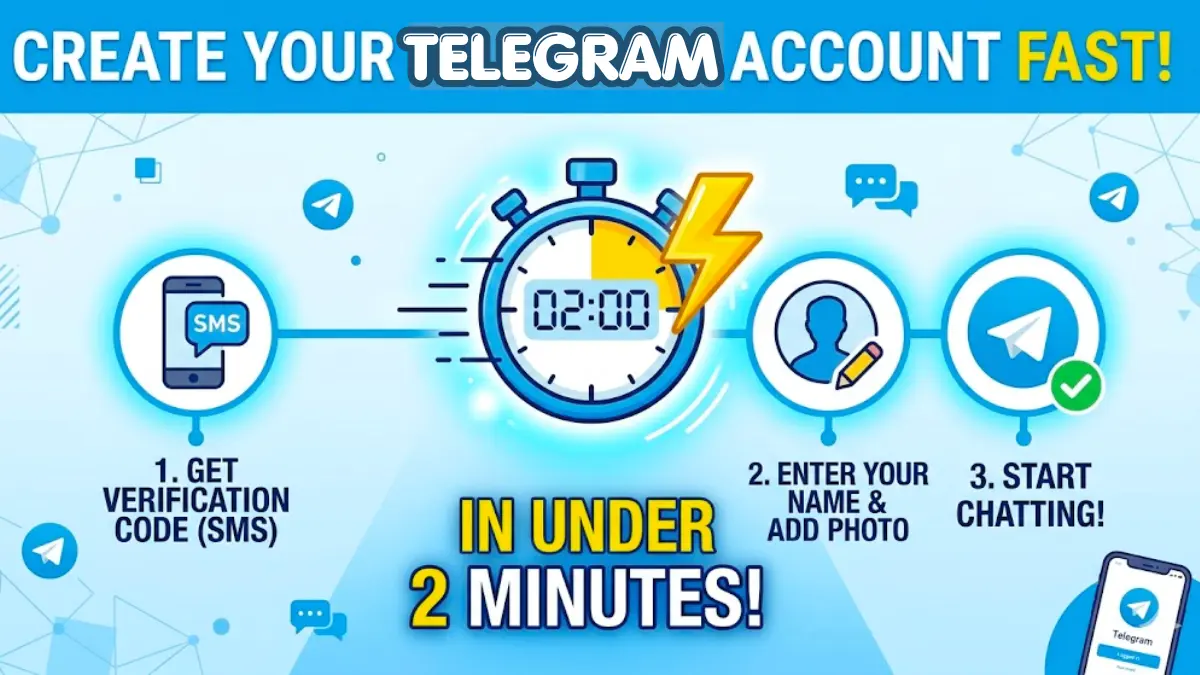

Telegram is a powerful, secure, and fast messaging app used by millions around the world. Whether you're switching from another platform or just want to try it out, creating a new Telegram account is simple and takes only a few minutes.
In this guide, we'll walk you through the entire process step-by-step.
1. Download the Telegram App
The first step to joining Telegram is to download the app onto your device:
- For Android: Open the Google Play Store and search for "Telegram".
- For iPhone/iPad: Open the Apple App Store and search for "Telegram Messenger".
- For Desktop: You can download the desktop client from the official Telegram website.
👉 Tap Install or Get to download and install the app on your phone.
2. Enter Your Phone Number
Once the app is installed, open it to begin the setup process:
- Tap on Start Messaging on the welcome screen.
- You will be prompted to choose your country. Select your country from the dropdown list.
- Enter your mobile phone number.
👉 Make sure the country code is correct before proceeding.
Note:Phone Number Required
3. Verify with SMS Code
After entering your phone number, Telegram needs to verify that the number belongs to you:
- Telegram will send an SMS containing a 5-digit verification code to the number you provided.
- Check your phone's messages app for this code.
- Enter the code into the Telegram app.
👉 In some cases, Telegram might call your phone to read the code to you, or automatically verify the code if it has permission to read your SMS.
4. Set Up Your Profile
With your number verified, the final step is to set up your profile:
- Enter your First Name (required).
- Enter your Last Name (optional).
- You can also tap the camera icon to upload a profile picture now, or you can do this later from the settings.
👉 Tap the checkmark or arrow to finish the setup.
Tip:Sync Across Devices
Conclusion
Congratulations! You have successfully created your Telegram account. You can now start adding contacts, joining channels, and exploring all the features Telegram has to offer. Enjoy your new messaging experience!
Spread the Knowledge
If you found this guide helpful, share it with your network!
You Might Also Like
Handpicked guides and fixes related to what you just read.
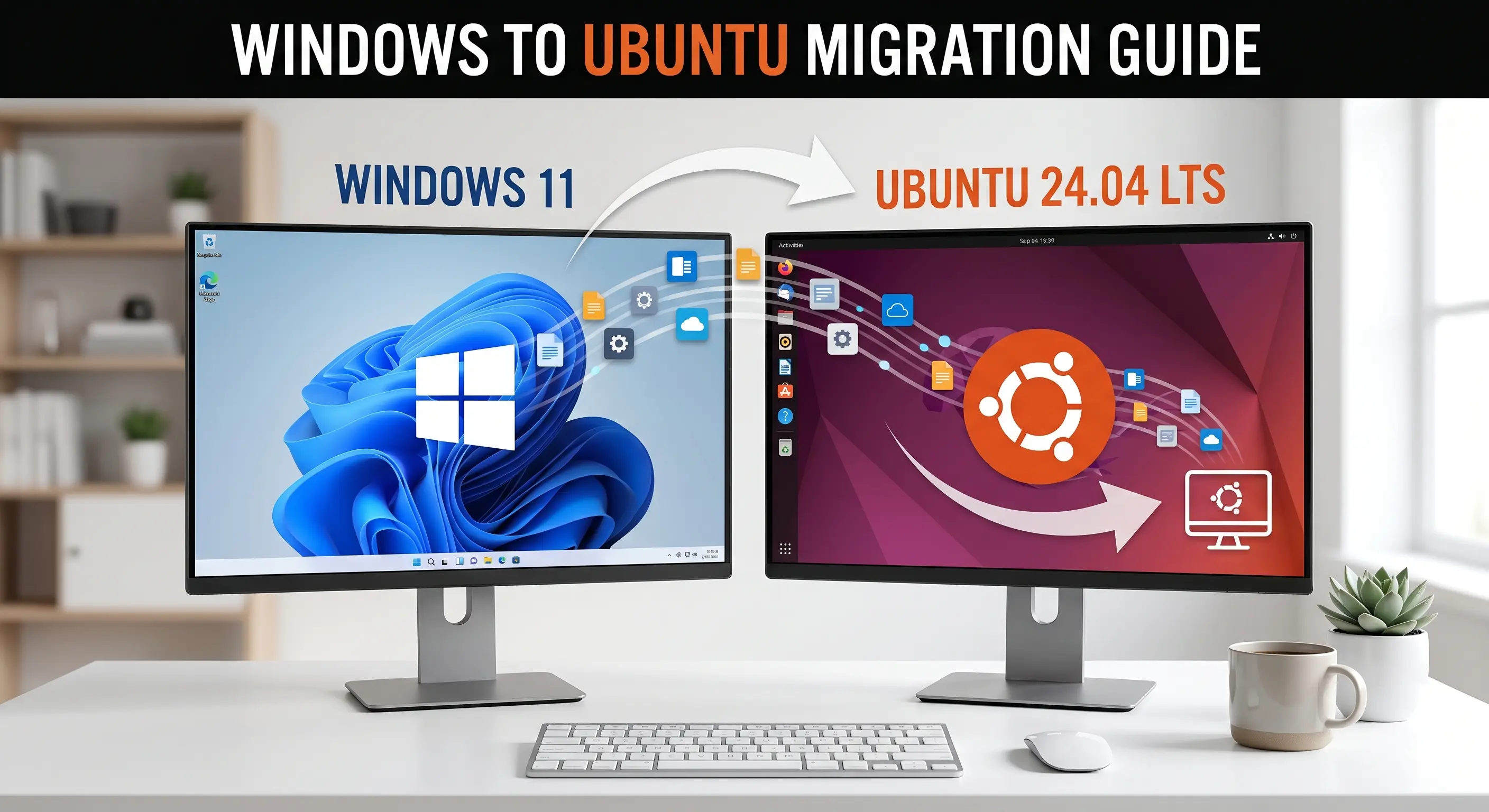
How to Replace Windows with Linux (Ubuntu) Permanently: A Complete Step-by-Step Guide
Replace Windows with Ubuntu Linux permanently — a beginner-friendly guide covering backup, BitLocker, BIOS setup, and clean installation step by step.
Read more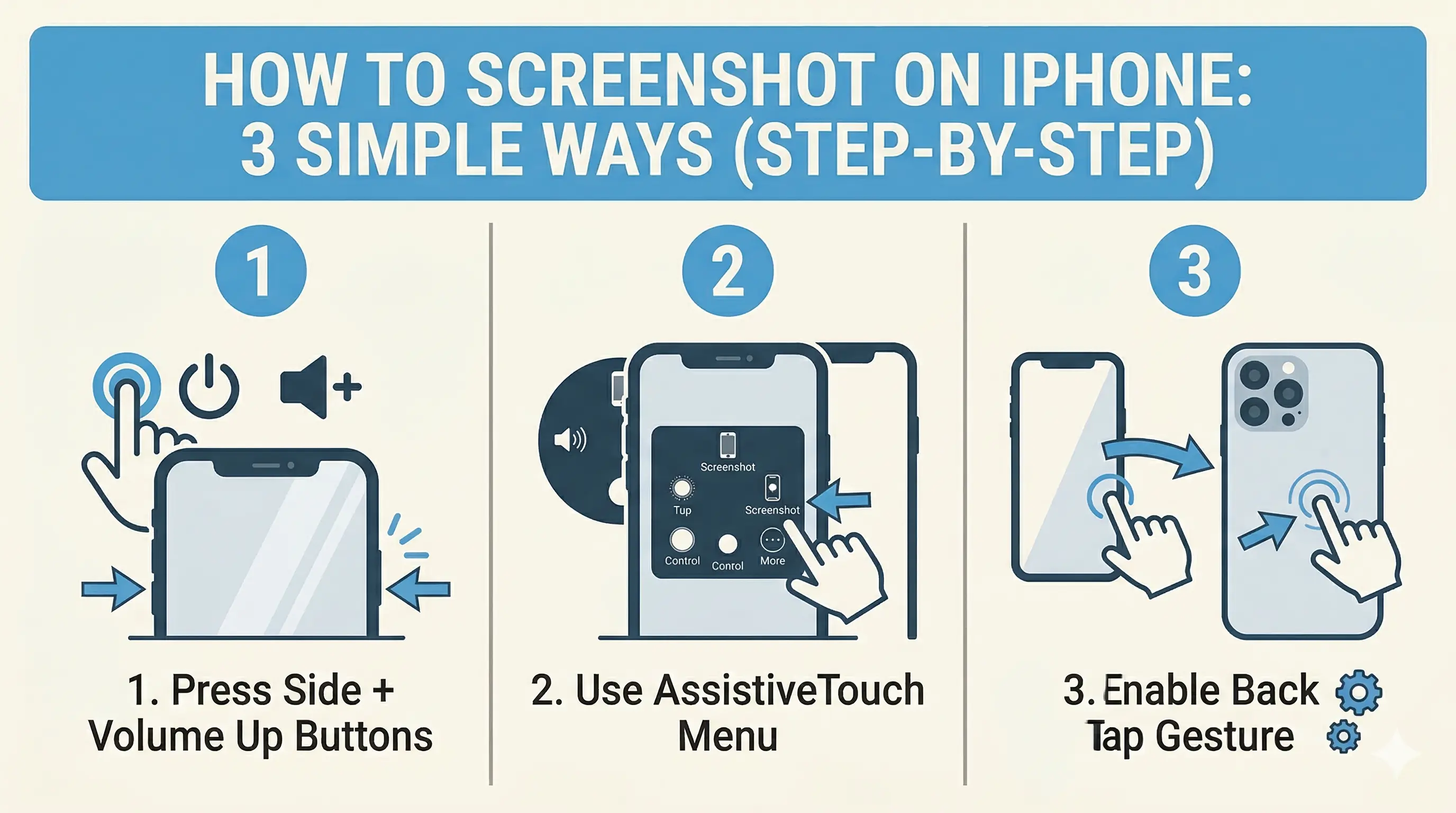
How to Screenshot on iPhone: 3 Simple Ways (Step-by-Step)
Capture your iPhone screen like a pro! Discover the hidden Back Tap feature, AssistiveTouch shortcuts, and the classic button method for seamless screenshots.
Read more
How to Lock WhatsApp Chat in iPhone (Easy Guide)
Learn how to easily lock your WhatsApp chats on your iPhone using Face ID, Touch ID, or a secret code for extra privacy and security.
Read more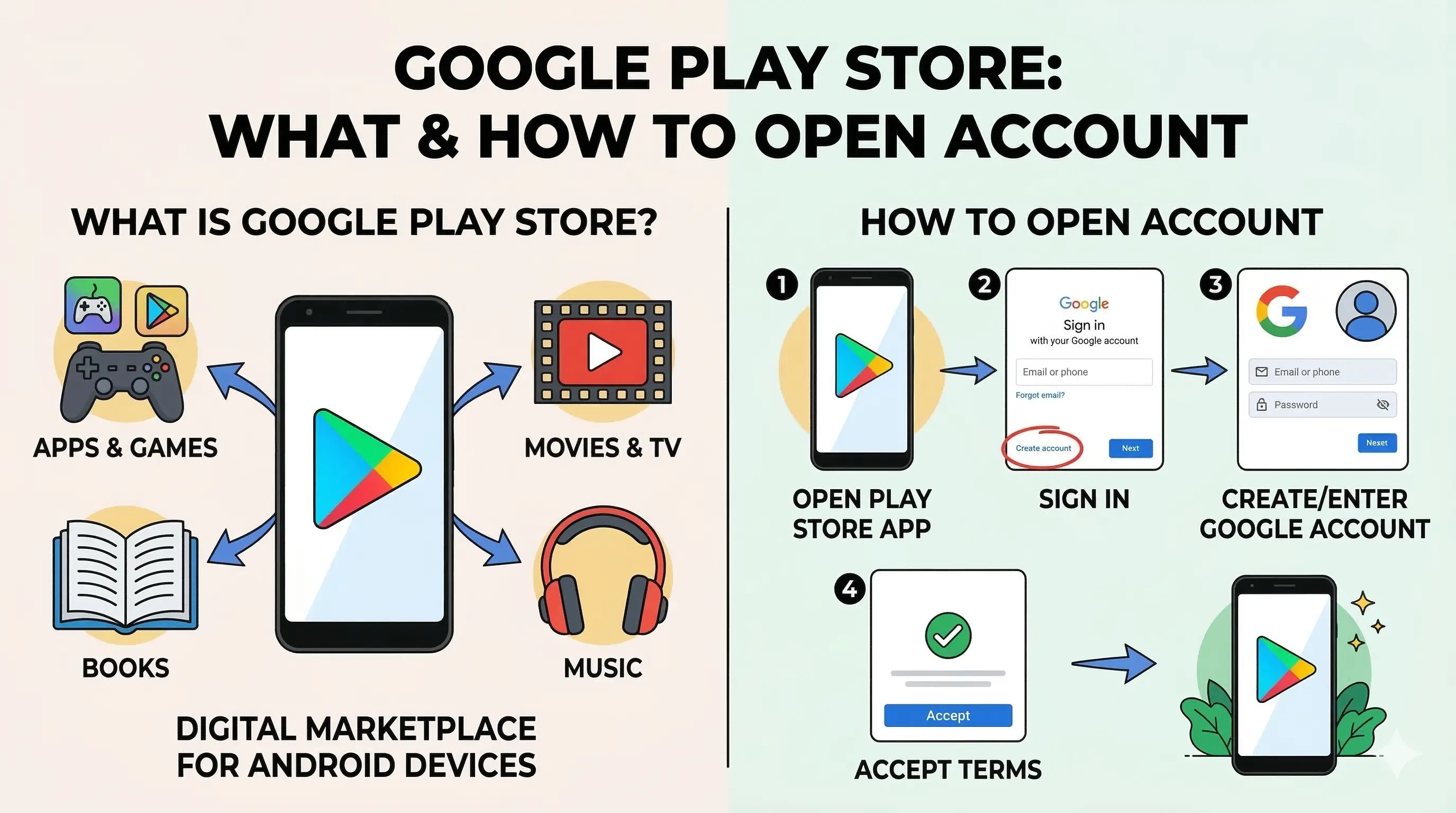
What is Google Play Store in Android & How to Open an Account
Learn everything about the Google Play Store, from its essential features to a complete step-by-step guide on creating and setting up your Google account for Android 📲.
Read more