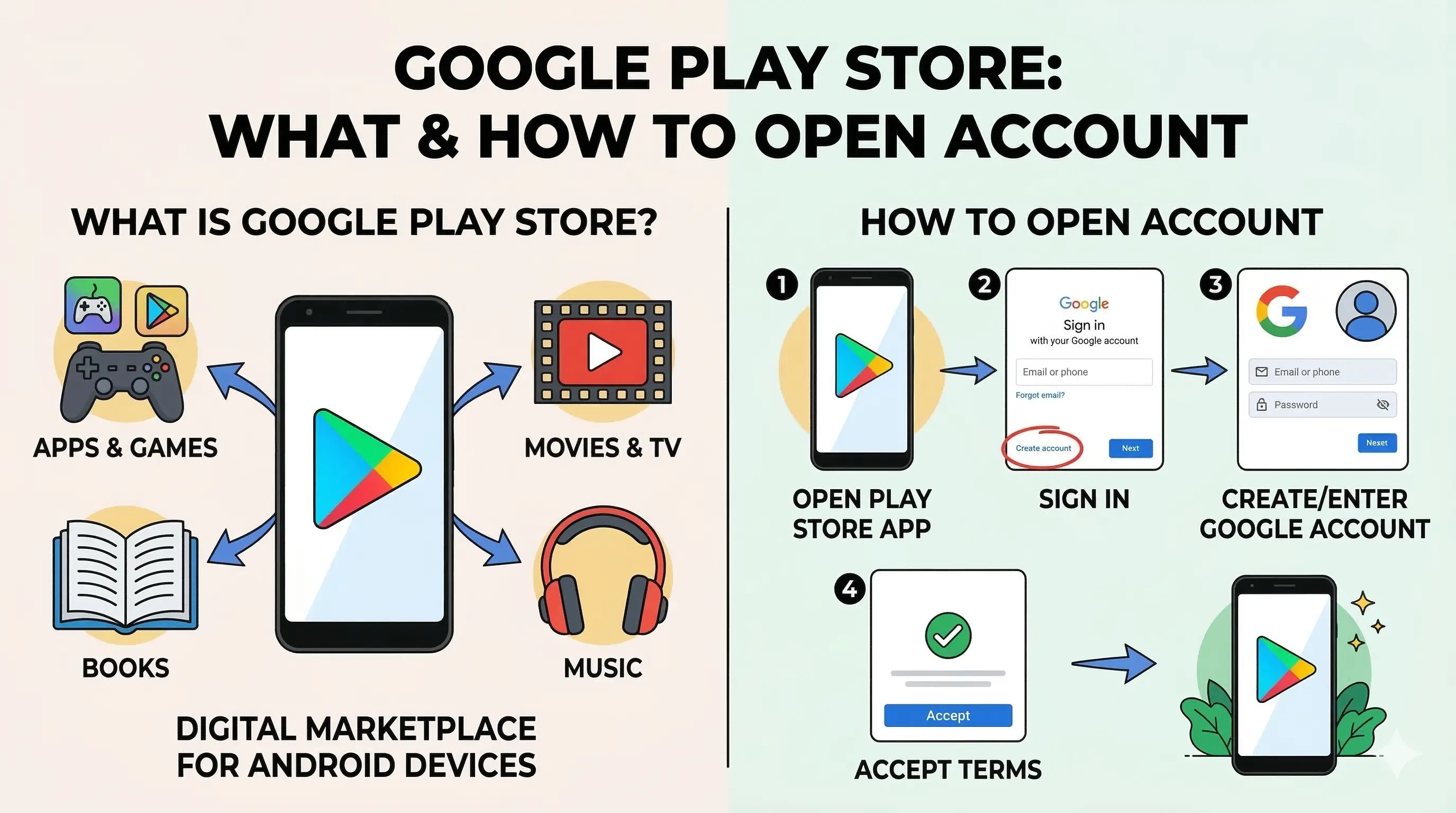

1. What is Google Play Store?
The Google Play Store is the heart of the Android ecosystem. It is the official digital distribution service operated and developed by Google. Think of it as a massive digital marketplace where you can find millions of applications, games, movies, books, and more for your Android device.
Pre-installed on almost every certified Android device, it ensures that the apps you download are safe, compatible, and kept up to date automatically.
2. Key Features & Benefits
The Play Store is more than just a place to download apps. It provides a comprehensive set of features designed to enhance your mobile experience:
- Massive Library: Millions of apps and games curated for every need.
- Digital Entertainment: Access to Google Play Books and Google TV (Movies).
- Safe Browsing: Every app is vetted by Google before it reaches your device.
- Wishlists: Save apps you want to download later.
3. Safety & Google Play Protect
One of the biggest advantages of the Play Store is Google Play Protect. This is Google's built-in malware protection for Android.
It scans over 100 billion apps every day to detect and block harmful software. When you have a Google account connected, Play Protect works in the background to keep your personal data secure.
Step 1: Start Account Setup
To use the Play Store, you need a Google Account. If you don't have one, follow these initial steps:
- Open your phone's Settings app.
- Scroll down and tap on Passwords & Accounts (or Accounts).
- Tap Add account and select Google.
Step 2: Enter Personal Info
Next, you'll need to provide some basic details to build your account:
- Tap Create account at the bottom left.
- Choose "For my personal use" and enter your first and last name.
- Enter your Birthday and Gender information.
Step 3: Finalize Account & Security
Finally, set up your login credentials and accept the terms:
- Pick a suggested Gmail address or create your own custom handle.
- Set a strong Password with letters, numbers, and symbols.
- Verify your phone number (if prompted) and agree to the Privacy and Terms.
Tip:Pro Tip
Step 4: Accessing the Store
With your account ready, you can now enter the digital marketplace:
- Locate the Play Store icon on your home screen and tap to open.
- The app will automatically sign you in with your new account.
- Use the Search bar at the top to find and install apps like WhatsApp or Instagram.
Step 5: Managing Your Apps
Once you start installing apps, the Play Store helps you keep them organized:
- Manage Space: Go to "Manage apps & device" to see how much storage your apps are using.
- Library Access: View your entire history of app downloads in the "Manage" tab.
- Ratings: Leave reviews for apps you enjoy to help other users.
How to Update Apps
Keeping your apps up to date is critical for security and performance:
- Tap your Profile Icon at the top right of the Play Store.
- Select Manage apps & device.
- Tap Updates available to see every app that needs an update.
- Click Update all to get the latest features instantly.
Troubleshooting Guide
Here are simple fixes for common Play Store connectivity or download issues:
- Waiting for Download: Ensure you are on a stable Wi-Fi network.
- Sync Error: Try restarting your phone or re-signing into your Google account.
- Clear Cache: Go to Settings > Apps > Play Store > Storage and tap "Clear Cache" to fix slow loading.
Spread the Knowledge
If you found this guide helpful, share it with your network!
You Might Also Like
Handpicked guides and fixes related to what you just read.
A Complete Guide to Backing Up WhatsApp Chats on Your Android Phone
Don't lose your precious memories! Learn how to securely back up your WhatsApp chats, photos, and videos to Google Drive on your Android phone with our simple step-by-step guide.
Read more
How to Free Up Storage on Android Phone Without Deleting Anything
Running out of storage on your Android phone? Learn how to reclaim space without deleting any photos, videos, or apps using simple built-in tools and smart tricks.
Read more
What is Samsung Knox Security? How It Works and How to Use It on Samsung Phones
Learn everything about Samsung Knox security, from how it protects your hardware to a step-by-step guide on using Secure Folder to keep your private data safe.
Read more
How to Use One WhatsApp on Two Phones Without QR Code (Easy Method)
Want to use the same WhatsApp account on two phones without scanning a QR code? Learn the official phone number linking method to sync your chats across devices easily.
Read more