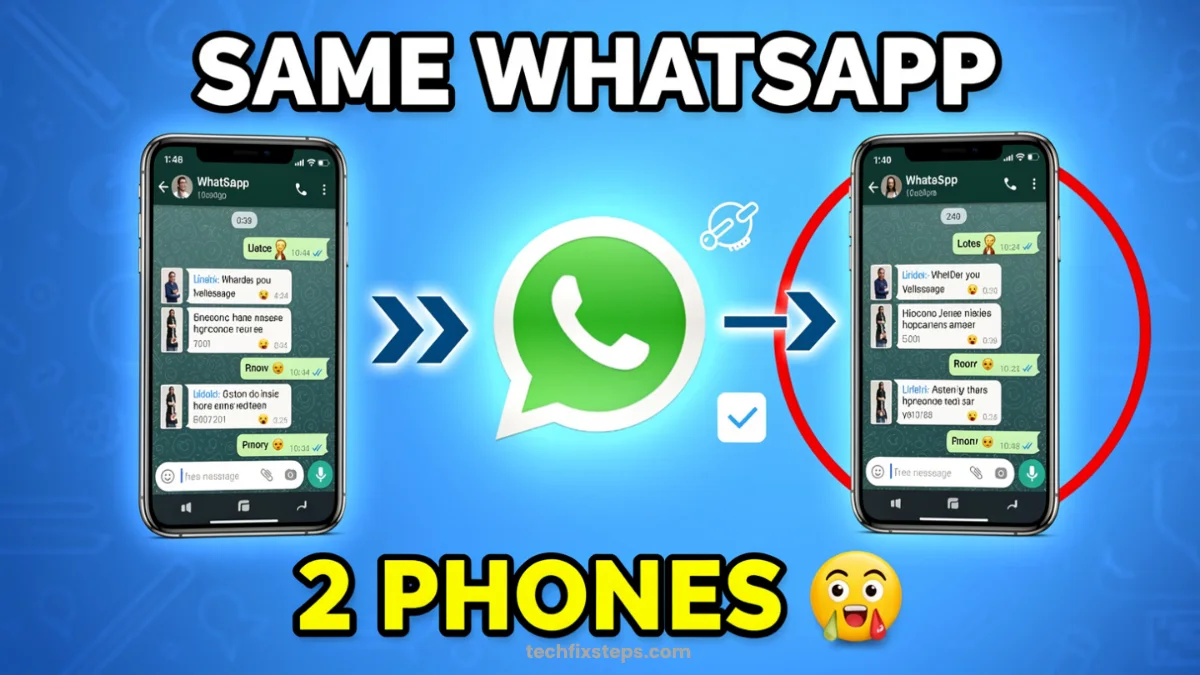

Want to use the same WhatsApp account on two phones without scanning a QR code? Good news—you can do it easily using a phone number login method. No QR scanning needed!
In this guide, you’ll learn a simple step-by-step method to use one WhatsApp account on two devices simultaneously.
1. How This Method Works
Traditionally, linking a second device required scanning a QR code with your main phone's camera. However, WhatsApp now provides an alternative:
- Generate a 8-character login code on the second phone.
- Enter that code on the main phone to authenticate.
👉 This effectively links both devices using the official "Link with Phone Number" feature.
Note:How Linking Works
2. Requirements
Before starting, make sure you have the following:
- Active Internet: Both phones must be connected to the internet.
- Same WhatsApp Number: You must know the phone number of your primary account.
- Updated App: Ensure you are using the latest version of WhatsApp on your main phone.
3. Step-by-Step Setup (On First Phone)
Follow these steps on your primary phone (the one where WhatsApp is already working):
- Open WhatsApp.
- Tap the three dots (top right corner).
- Select Linked Devices.
- Tap Link a Device.
- Verify your identity using your screen lock (Fingerprint, PIN, or Face ID).
👉 Now the camera scanner will open. Ignore the scanner and look at the bottom of the screen.
- Tap the option that says “Link with phone number insteadâ€.
4. Get Code on Second Phone
Now, perform these steps on your second device (the one you want to link):
- Open the Chrome browser (or any modern mobile browser).
- Search for WhatsApp Web or go directly to
web.whatsapp.com. - Tap the three dots in Chrome and select Desktop site.
Tip:Mobile Optimization
👉 Now you’ll see the standard QR code screen. Look for the link below it.
- Tap “Link with phone numberâ€.
- Enter your Primary WhatsApp number (including country code).
- Tap Next.
👉 A 8-character alphanumeric code will appear on your screen.
5. Enter Code on First Phone
- Go back to your first phone (where you tapped "Link with phone number instead").
- Enter the 8-character code exactly as it appears on your second phone.
👉 Done! WhatsApp will now begin syncing your chats and media onto the second phone.
6. Use WhatsApp Like an App
Tired of opening the browser every time? You can turn the web shortcut into a standalone app icon:
- While on the WhatsApp Web tab in Chrome, tap the three dots.
- Tap Add to Home Screen or Install App.
- Confirm the installation.
👉 Now, you have a WhatsApp icon on your home screen that works just like a real app!
7. How to Logout from Second Phone
If you want to revoke access and protect your privacy:
- Open WhatsApp on your primary phone.
- Go to Linked Devices.
- Tap on the connected device (it will likely show as "Google Chrome" or "Linux/Windows").
- Tap Logout.
👉 WhatsApp will immediately stop working on the second phone.
Important Tips for Success
- Distance doesn't matter: This method works even if the second phone is in another city.
- Internet Dependency: Both devices need a stable connection for real-time syncing.
- Privacy First: Regularly check your "Linked Devices" list to ensure no unauthorized access.
Warning:Security Warning
Conclusion
Now you can easily use one WhatsApp on two phones without needing a QR code. This method is official, secure, and perfect for when your primary phone's camera is broken or when you are physically away from your second device.
Spread the Knowledge
If you found this guide helpful, share it with your network!
You Might Also Like
Handpicked guides and fixes related to what you just read.
A Complete Guide to Backing Up WhatsApp Chats on Your Android Phone
Don't lose your precious memories! Learn how to securely back up your WhatsApp chats, photos, and videos to Google Drive on your Android phone with our simple step-by-step guide.
Read more
How to Protect Your WhatsApp Privacy from Screenshots (Real Working Methods)
Concerned about WhatsApp privacy? Learn the real ways to protect your chats and media from screenshots, even though WhatsApp doesn't have a direct 'block' feature yet.
Read more
How to Free Up Storage on Android Phone Without Deleting Anything
Running out of storage on your Android phone? Learn how to reclaim space without deleting any photos, videos, or apps using simple built-in tools and smart tricks.
Read more
How to Lock WhatsApp Chat in iPhone (Easy Guide)
Learn how to easily lock your WhatsApp chats on your iPhone using Face ID, Touch ID, or a secret code for extra privacy and security.
Read more