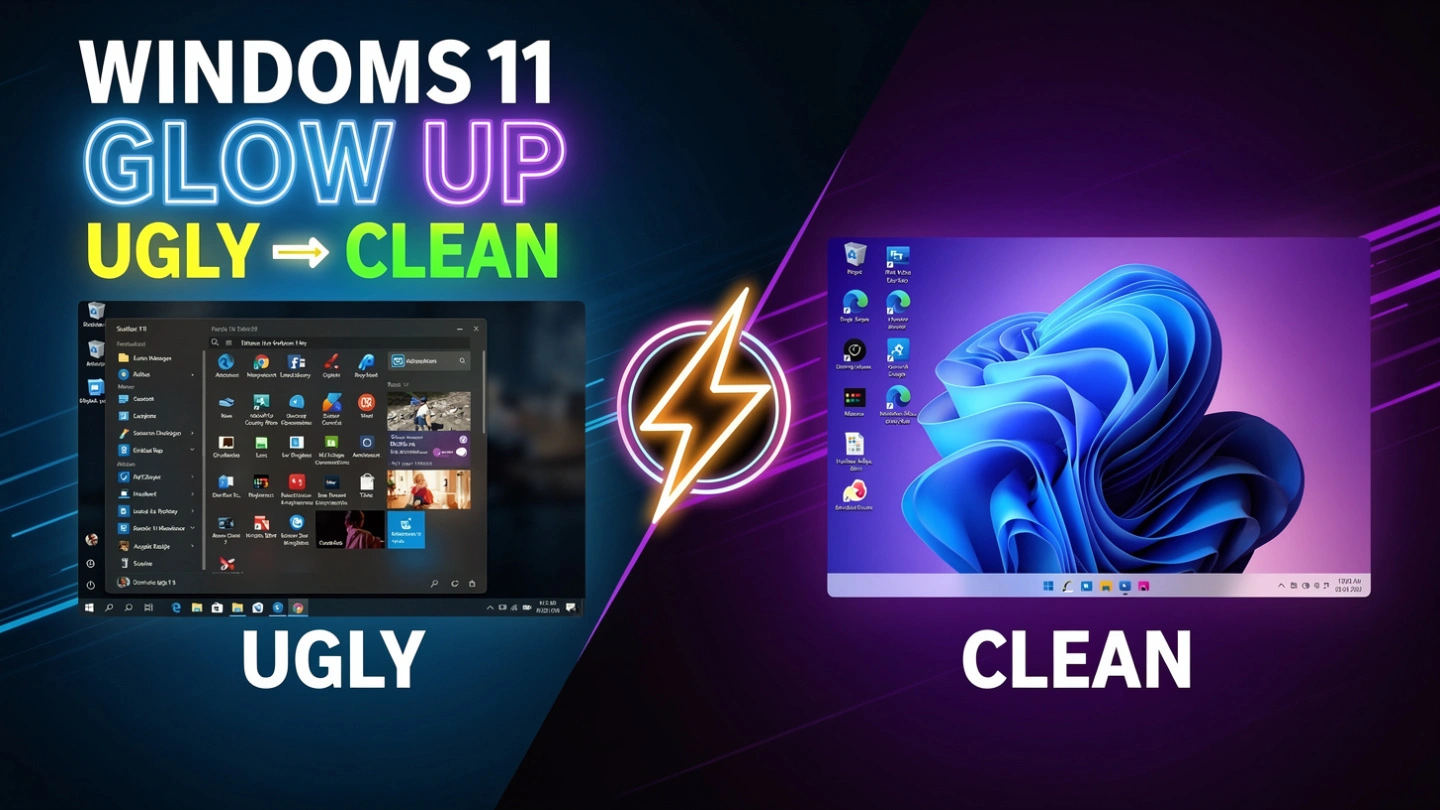

Want to give your Windows 11 desktop a fresh, eye-catching look in less than a minute? Follow this simple step-by-step guide to transform your PC into something sleek and stylish—no advanced skills needed.
1. Clean Up Your Taskbar
Start by simplifying your taskbar for a cleaner appearance.
- Right-click on the taskbar
- Click on Taskbar settings
- Turn off features you don’t use, such as:
- Widgets
- Chat
- Other unnecessary icons
This instantly makes your desktop look less cluttered and more modern.
2. Install Windhawk for Customization
Next, use a powerful customization tool called Windhawk.
- Open your browser
- Go to the official website: windhawk.net
- Download and install the software
Windhawk allows you to customize Windows 11 beyond default settings.
3. Add Styling Modules
After installing Windhawk, enhance your UI with these modules:
- Start Menu Styler
- Taskbar Styler
- Notification Center Styler
These tools help you redesign key parts of your Windows interface.
4. Apply a Stylish Theme
Now it’s time to make things look “insane†(in a good way):
- Open Windhawk settings
- Set:
- Start Menu theme → Translucent
- Notification Center theme → Translucent
- Taskbar theme → Squircles
Click Apply to activate the changes.
5. Hide Desktop Icons
For a minimal and clean desktop:
- Right-click on the desktop
- Hover over View
- Uncheck Show desktop icons
This removes all icons and gives your screen a distraction-free look.
6. Choose a Stunning Wallpaper
Finish your setup with a bold wallpaper:
- Pick a “crazy†or visually striking wallpaper you like
- Set it as your desktop background
This adds personality and completes the transformation.
Final Result
In under Minute, your Windows 11 desktop will look:
- Cleaner
- More modern
- Fully customized
- Visually impressive
Bonus Tip
Keep experimenting with different themes and wallpapers to match your style.
Spread the Knowledge
If you found this guide helpful, share it with your network!
You Might Also Like
Handpicked guides and fixes related to what you just read.
How to Customize Windows Terminal Look Better Themes, Fonts & Oh My Posh Guide (2026 Step-by-Step )
Transform your Windows Terminal from a plain black box into a modern, stylish, and productivity-focused workspace with themes, Nerd Fonts, and Oh My Posh.
Read more
How to Take Better Screenshots on Windows (3 Easy Tricks)
Master Windows screenshots like a pro! Learn powerful shortcuts for custom captures, auto-saving, and even full-page scrolling screenshots in Microsoft Edge.
Read more
How to Make Windows 11 Faster (3 Easy Settings for 2026)
Boost your Windows 11 performance and productivity in minutes. Learn how to enable Clipboard History, clean up Alt + Tab, and activate the hidden Window Shake feature.
Read more
How to Install Google Chrome on PC: A Step-by-Step Guide
Get started with the world's most popular web browser. Follow our easy, step-by-step guide to download and install Google Chrome safely on your Windows or Mac PC.
Read more