
Why Choose Google Chrome?
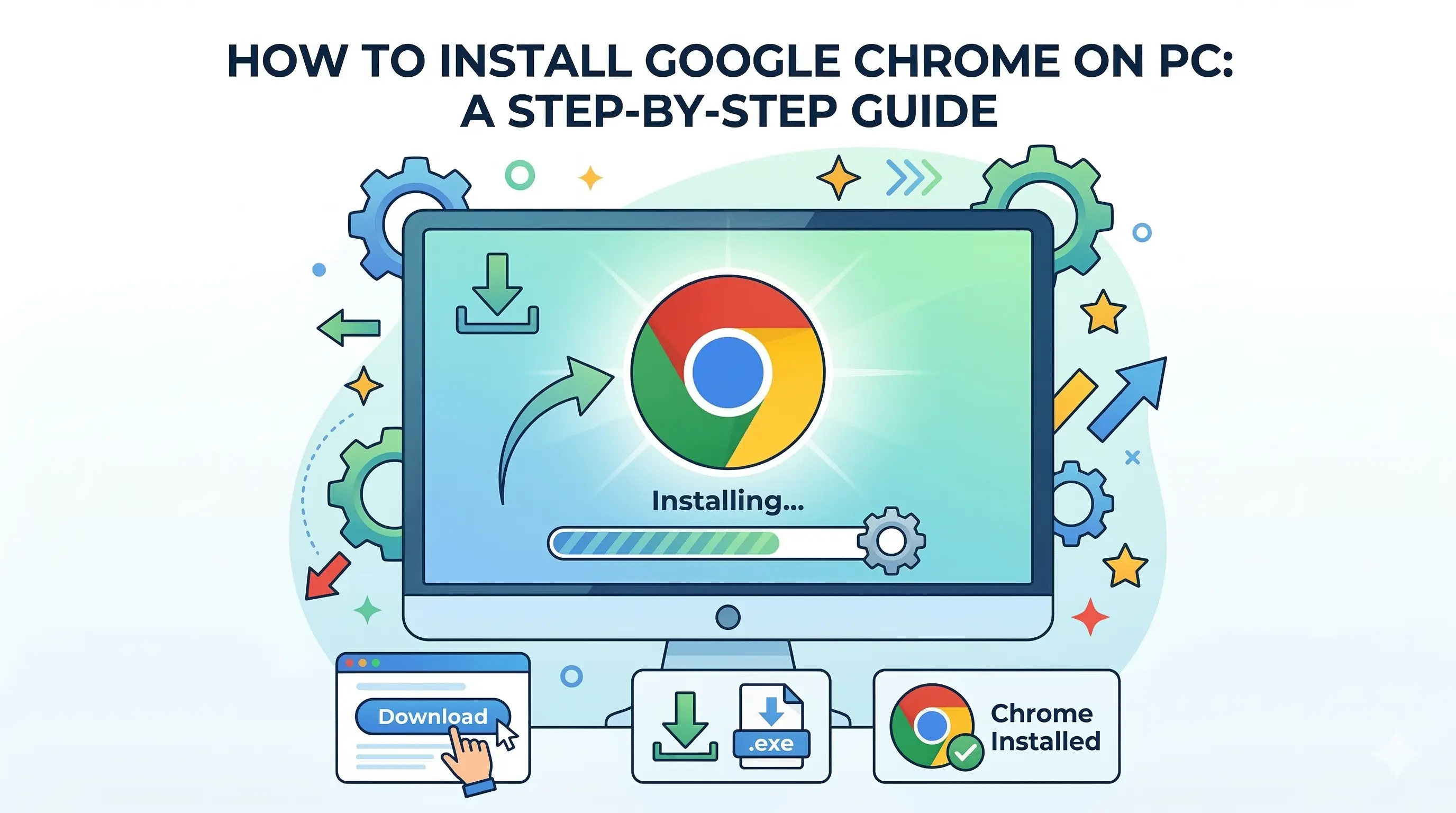
Google Chrome is more than just a gateway to the internet; it's a powerful tool built for speed, security, and stability. With its clean interface and massive library of extensions, it has become the gold standard for web browsing globally.
Step 1: Download the Official Installer
Safety first: Always download Chrome from the official source. This ensures you're getting the most secure version free from bundled software.
- Open your current browser (Edge, Safari, or Firefox).
- Visit the official Chrome download page.
- Click the "Download Chrome" button.
- The setup file (usually ChromeSetup.exe or googlechrome.dmg) will begin downloading.
Step 2: Installing on Windows
Installing Chrome on Windows is a streamlined process that takes only a few minutes.
- Locate the
ChromeSetup.exefile in your downloads. - Double-click the file to run the installer.
- If Windows asks "Do you want to allow this app to make changes?", click Yes.
- The installer will automatically download and install the browser files.
Step 3: Installing on MacOS
Mac users follow a slightly different "drag-and-drop" method common for Apple software.
- Open the
googlechrome.dmgfile you downloaded. - In the popup window, drag the Chrome icon into the Applications folder.
- Wait for the copying process to complete.
- You can now launch Chrome from your Launchpad or Applications folder.
Step 4: Initial Setup & Sync
After launching Chrome for the first time, you'll be prompted to make it your own.
- Sign in with Google: Log in to sync your bookmarks, history, and passwords across all your devices.
- Import Data: You can easily import bookmarks from your old browser.
- Pick a Theme: Choose a light or dark theme to suit your style.
How to Set Chrome as Default
To ensure all your links open in Chrome automatically:
- In Chrome, click the three dots (Menu) top right.
- Go to Settings > Default browser.
- Click Make default. Windows or MacOS settings will open to confirm.
Troubleshooting & Fixes
Encountering issues? Try these common solutions:
- Installation Stalled: Ensure your internet connection is active as the installer downloads files in real-time.
- Antivirus Conflict: Some security software may block installers; try disabling it temporarily for the installation.
- Disk Space: Ensure you have at least 500MB of free space on your system drive.
Spread the Knowledge
If you found this guide helpful, share it with your network!
You Might Also Like
Handpicked guides and fixes related to what you just read.
How to Customize Windows Terminal Look Better Themes, Fonts & Oh My Posh Guide (2026 Step-by-Step )
Transform your Windows Terminal from a plain black box into a modern, stylish, and productivity-focused workspace with themes, Nerd Fonts, and Oh My Posh.
Read more
How to Take Better Screenshots on Windows (3 Easy Tricks)
Master Windows screenshots like a pro! Learn powerful shortcuts for custom captures, auto-saving, and even full-page scrolling screenshots in Microsoft Edge.
Read more
How to Make Windows 11 Look Better in 1 Minute (2026 Fast Guide)
Want to give your Windows 11 desktop a fresh, eye-catching look in less than a minute? Follow this simple step-by-step guide to transform your PC into something sleek and stylish — no advanced skills needed.
Read more
How to Use Google Gemini AI: Complete Beginner's Guide
New to Google Gemini? Learn how to install it on Android, iPhone, or PC, use voice input and the live camera, generate AI images, and get direct answers — no tech experience needed.
Read more