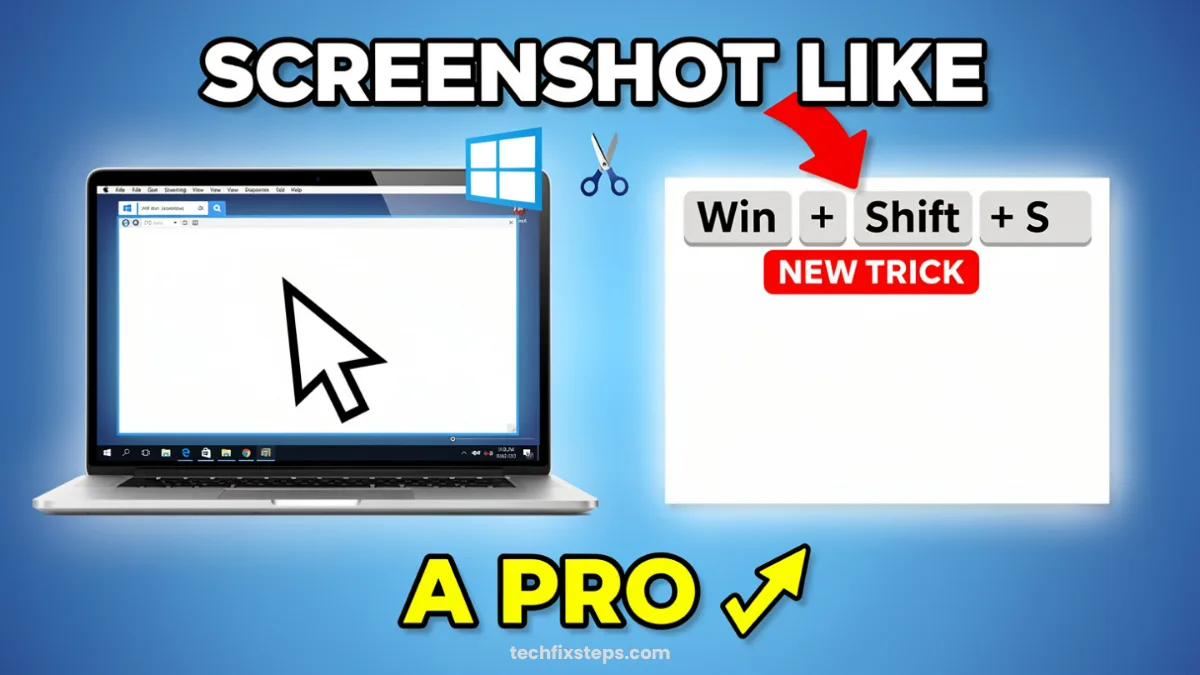

Taking screenshots on Windows is easy—but most people only know one basic method. What if you could capture only a specific window, take custom area screenshots, or even capture a full scrolling webpage?
In this guide, you’ll learn 3 powerful Windows screenshot tricks that will save you time and make your work much easier.
ðŸ–¥ï¸ Trick 1: Use Print Screen Like a Pro
The Print Screen (PrtScn) key is the most common way to take screenshots—but there’s more you can do with it than just hitting a single button.
👉 Full Screen Screenshot
- Press Print Screen (PrtScn)
- The screenshot is copied to your clipboard
- You can Paste it anywhere (Ctrl + V) like in Paint, Word, or Discord
👉 Auto Save Screenshot
- Press Windows Key + Print Screen
- The screen will dim for a second
- The screenshot is automatically saved in Pictures → Screenshots
👉 Capture Only Active Window
- Press Alt + Print Screen
- This captures only the current window you are working in
- The image is copied to your clipboard instantly
👉 Save Active Window Screenshot (Advanced)
- Press Windows + Alt + Print Screen
- This saves the screenshot automatically
- Files are typically stored in Videos → Captures (or OneDrive if enabled)
âœ‚ï¸ Trick 2: Use Snipping Tool (Best for Custom Screenshots)
Want more control? The modern Snipping Tool shortcut is the most flexible way to capture exactly what you need.
Steps:
- Press Windows + Shift + S
- This opens a menu at the top of your screen with options:
- Rectangular selection: Draw a box
- Freeform selection: Draw any shape
- Window capture: Click a specific app
- Full screen: Capture everything
- Select the area, and it will be copied to your clipboard and saved in the Snipping Tool library.
🌠Trick 3: Capture Full Webpage (Scrolling Screenshot in Edge)
This is a hidden and powerful trick built directly into Microsoft Edge. It allows you to capture an entire article even if it goes below the screen.
Steps:
- Open your page in Microsoft Edge
- Press Ctrl + Shift + S
- Select Capture full page
This is perfect for:
- Saving long articles for offline reading
- Capturing full webpages for design reference
- Documenting long data tables or threads
🚀 Why These Tricks Are Useful
With these methods, you can work faster, capture exactly what you need without cropping later, and professionally document your digital work.
✅ Conclusion
Now you know 3 powerful Windows screenshot tricks: use Print Screen smartly, capture custom areas with the Snipping Tool, and take full-page screenshots in Edge.
Tip:Pro Tip
Spread the Knowledge
If you found this guide helpful, share it with your network!
You Might Also Like
Handpicked guides and fixes related to what you just read.
How to Make Windows 11 Faster (3 Easy Settings for 2026)
Boost your Windows 11 performance and productivity in minutes. Learn how to enable Clipboard History, clean up Alt + Tab, and activate the hidden Window Shake feature.
Read more
How to Customize Windows Terminal Look Better Themes, Fonts & Oh My Posh Guide (2026 Step-by-Step )
Transform your Windows Terminal from a plain black box into a modern, stylish, and productivity-focused workspace with themes, Nerd Fonts, and Oh My Posh.
Read more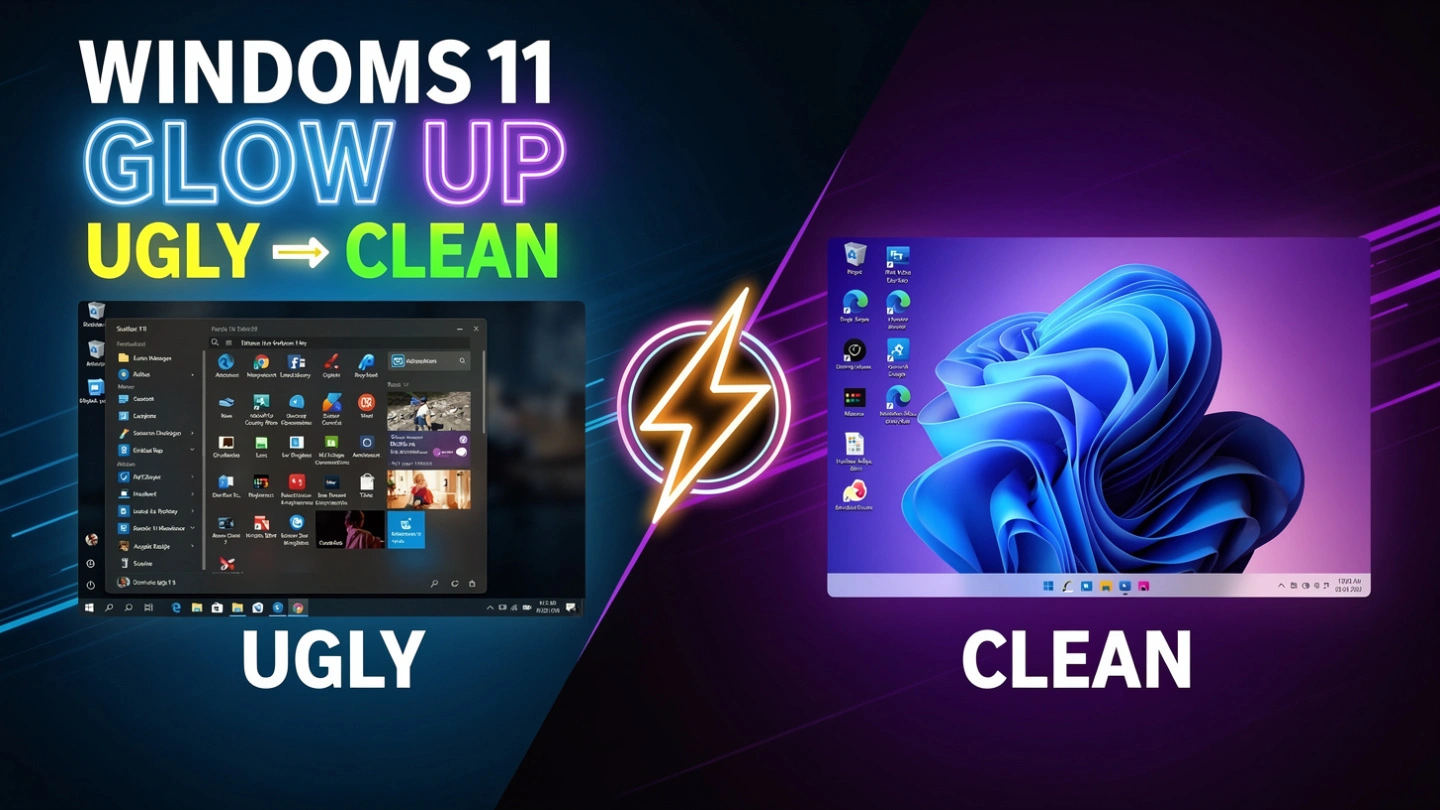
How to Make Windows 11 Look Better in 1 Minute (2026 Fast Guide)
Want to give your Windows 11 desktop a fresh, eye-catching look in less than a minute? Follow this simple step-by-step guide to transform your PC into something sleek and stylish — no advanced skills needed.
Read more
How to Install Google Chrome on PC: A Step-by-Step Guide
Get started with the world's most popular web browser. Follow our easy, step-by-step guide to download and install Google Chrome safely on your Windows or Mac PC.
Read more