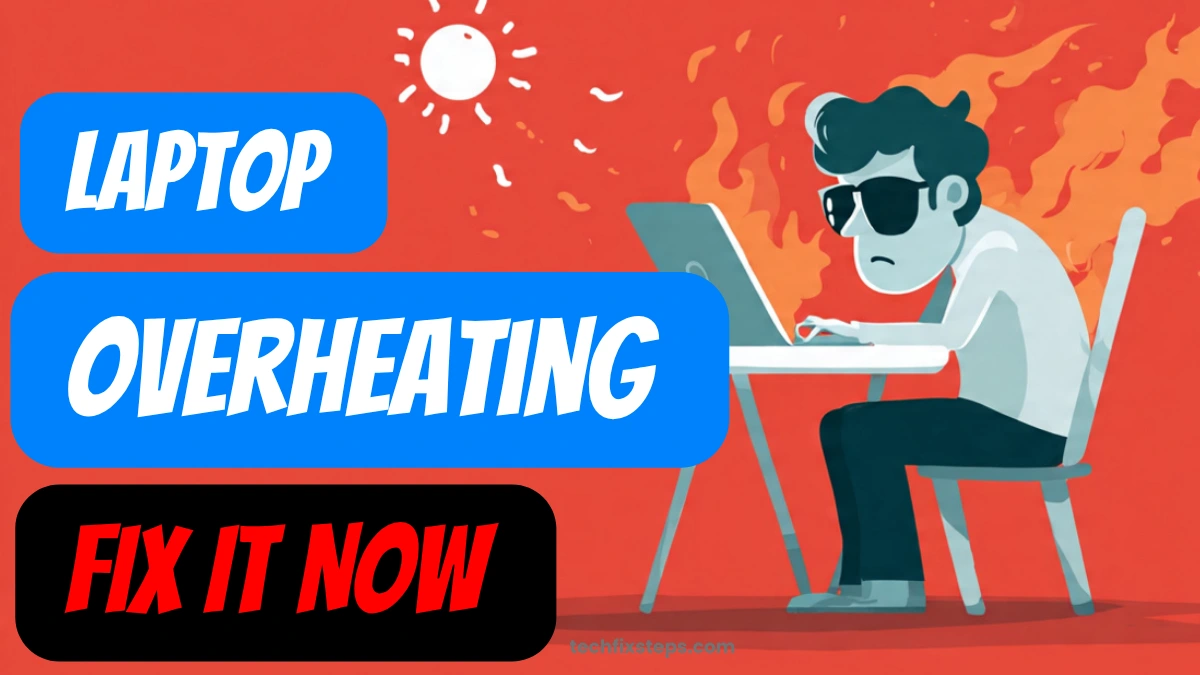

Note:
1. Why temperature increases when charging
More power = more heat
When you plug in your laptop, it’s no longer trying to save battery. Instead, it:
- Uses full CPU/GPU performance
- Increases background activity
- Runs apps faster
Note:
Battery charging itself produces heat
While charging:
- The battery undergoes chemical reactions
- These naturally generate heat
- Especially noticeable when charging from low % to high %
Performance mode kicks in
Most laptops automatically switch to:
- High performance mode when plugged in
- Fans may spin later (to reduce noise), allowing heat to build up first
Background processes increase
When plugged in, your system may:
- Install updates
- Run antivirus scans
- Sync files (e.g., cloud apps)
Note:
2. Why temperature is not shown
If you don’t see temperature info:
On Windows:
- Temperature is not shown by default
- You need tools like: HWMonitor, Core Temp, or MSI Afterburner
On macOS:
- Also not shown by default
- Apps like: iStat Menus can help
3. What is a normal temperature?
- Idle: 35–50°C
- Normal use: 50–70°C
- Heavy use / charging: 70–90°C
Warning:Temperature Threshold
4. When to worry
You should be concerned if:
- Laptop becomes too hot to touch
- Fans are always loud
- System slows down or shuts down automatically
5. How to reduce heating
- Use laptop on a hard surface (not bed/blanket)
- Clean air vents
- Reduce heavy apps while charging
- Use balanced power mode
- Consider a cooling pad
6. Who should fix your laptop overheating issue?
Here are your best options depending on the situation:
1. Authorized Service Center (Best option)
If your laptop is still under warranty or relatively new, go to the official service center of your laptop brand (like Dell, HP, Lenovo, Asus). They will:
- Clean internal dust
- Replace thermal paste
- Fix fan or battery issues
Tip:Pro Tip
2. Local Computer Repair Shop
If your laptop is out of warranty, visit a trusted local technician. Ask specifically for:
- Fan cleaning
- Thermal paste replacement
- Battery check
👉 Usually cheaper and faster.
3. You can fix small issues yourself
If heating is mild, try:
- Cleaning vents (use an air blower)
- Using a cooling pad
- Closing heavy apps
- Changing power mode to balanced
👉 No need for repair if the problem is minor.
Simple advice:
If your laptop is new → go to authorized service. If old → a good local repair shop is fine.
Spread the Knowledge
If you found this guide helpful, share it with your network!
You Might Also Like
Handpicked guides and fixes related to what you just read.
Wi-Fi Option Missing? How to Fix Wi-Fi Not Working on Windows 10/11
A comprehensive step-by-step guide to fixing missing Wi-Fi options, adapter issues, and connectivity problems on Windows 10 and 11.
Read more
How to Fix Windows 11 Bluetooth in 5 Minutes (Step-by-Step Guide)
Stop struggling with Bluetooth connectivity issues on Windows 11. Learn how to fix missing icons, pairing failures, and service bugs in just 5 minutes.
Read more
iPad Stuck on Apple Logo? Here is How to Fix it Instantly in 2026
Is your iPad frozen on the Apple logo or not responding? Follow our comprehensive guide to troubleshooting common iPad issues, performing a hard reset, and getting your device back to normal without losing data.
Read more
Fix iPhone Hanging & Slow Network with a Force Restart
Is your iPhone freezing or stuck? Learn the official and safe method to force restart any iPhone model to fix hanging, network glitches, and performance issues instantly.
Read more