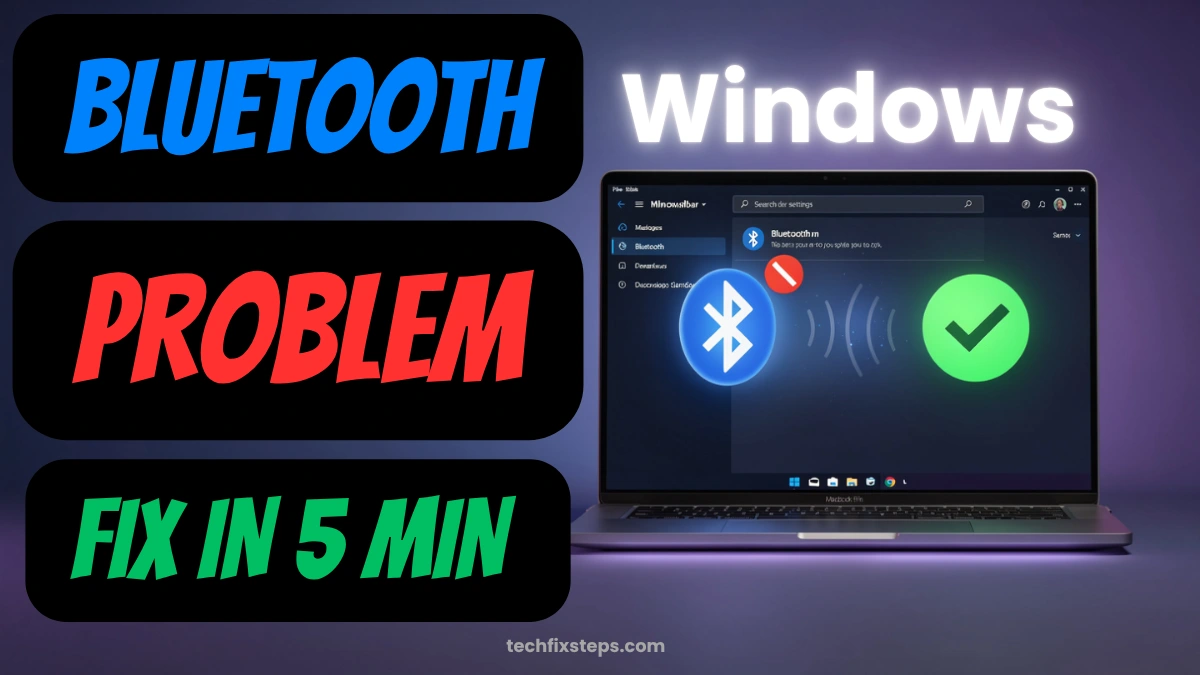

Bluetooth is an important feature in Windows 11. It helps you connect wireless devices like headphones, keyboards, mouse, and speakers. But sometimes, Bluetooth stops working. You may face issues like:
- Bluetooth option not showing
- Unable to connect devices
- Bluetooth not turning on
If you are facing these problems, don’t worry. In this guide, you will learn a simple and effective method to fix Bluetooth issues in Windows 11.
Why Bluetooth Stops Working?
Before fixing the issue, let’s understand the common reasons:
- Bluetooth service is stopped
- Wrong startup settings
- System glitches
- Temporary bugs in Windows
The good news is — this problem can be fixed in just a few steps.
Step 1: Open Windows Services
Windows services control many background features, including Bluetooth.
Steps:
- Click on the Search icon
- Type Services
- Click on the Services app
Note:
Step 2: Find Bluetooth Support Service
Now you need to locate the correct service.
Steps:
- Scroll down in the list
- Find Bluetooth Support Service
Note:
Step 3: Change Startup Type to Automatic
Sometimes Bluetooth stops working because the service is not set correctly.
Steps:
- Right-click on Bluetooth Support Service
- Click on Properties
- Look for Startup type
Make sure: It is set to Automatic.
If not: Select Automatic, click Apply → OK.
Step 4: Restart Bluetooth Service
Now restart the service to apply changes.
Steps:
- Right-click on Bluetooth Support Service again
- Click on Restart
Note:
Step 5: Restart Your Computer
This is very important to finalize the changes.
- Close all windows
- Restart your laptop or PC
Note:
Bonus Tips (If Still Not Working)
If the problem continues, try these:
- Update Windows from Settings → Windows Update
- Update Bluetooth drivers in Device Manager
- Turn Bluetooth OFF and ON again
- Run the built-in Windows troubleshooter
Conclusion
Bluetooth issues in Windows 11 are usually caused by small system settings. By enabling and restarting the Bluetooth Support Service, you can fix the problem quickly. Just follow the steps carefully, and your Bluetooth should start working again.
Spread the Knowledge
If you found this guide helpful, share it with your network!
You Might Also Like
Handpicked guides and fixes related to what you just read.
Wi-Fi Option Missing? How to Fix Wi-Fi Not Working on Windows 10/11
A comprehensive step-by-step guide to fixing missing Wi-Fi options, adapter issues, and connectivity problems on Windows 10 and 11.
Read more
Why Laptop Temperature Increases When Charging and How to Fix It
Understand why your laptop heats up when plugged in, what temperatures are normal, and how to effectively reduce overheating issues.
Read more
iPad Stuck on Apple Logo? Here is How to Fix it Instantly in 2026
Is your iPad frozen on the Apple logo or not responding? Follow our comprehensive guide to troubleshooting common iPad issues, performing a hard reset, and getting your device back to normal without losing data.
Read more
How to Replace Windows with Linux (Ubuntu) Permanently: A Complete Step-by-Step Guide
Replace Windows with Ubuntu Linux permanently — a beginner-friendly guide covering backup, BitLocker, BIOS setup, and clean installation step by step.
Read more